Mailbox Plugin
Mailbox brings your team's email into RISE. You can read, answer, and organize the emails of shared mailboxes like support@ or sales@ without leaving RISE.
It is made for teams that handle client and lead emails every day. Emails are linked to client and lead pages, so you always know who wrote to you.

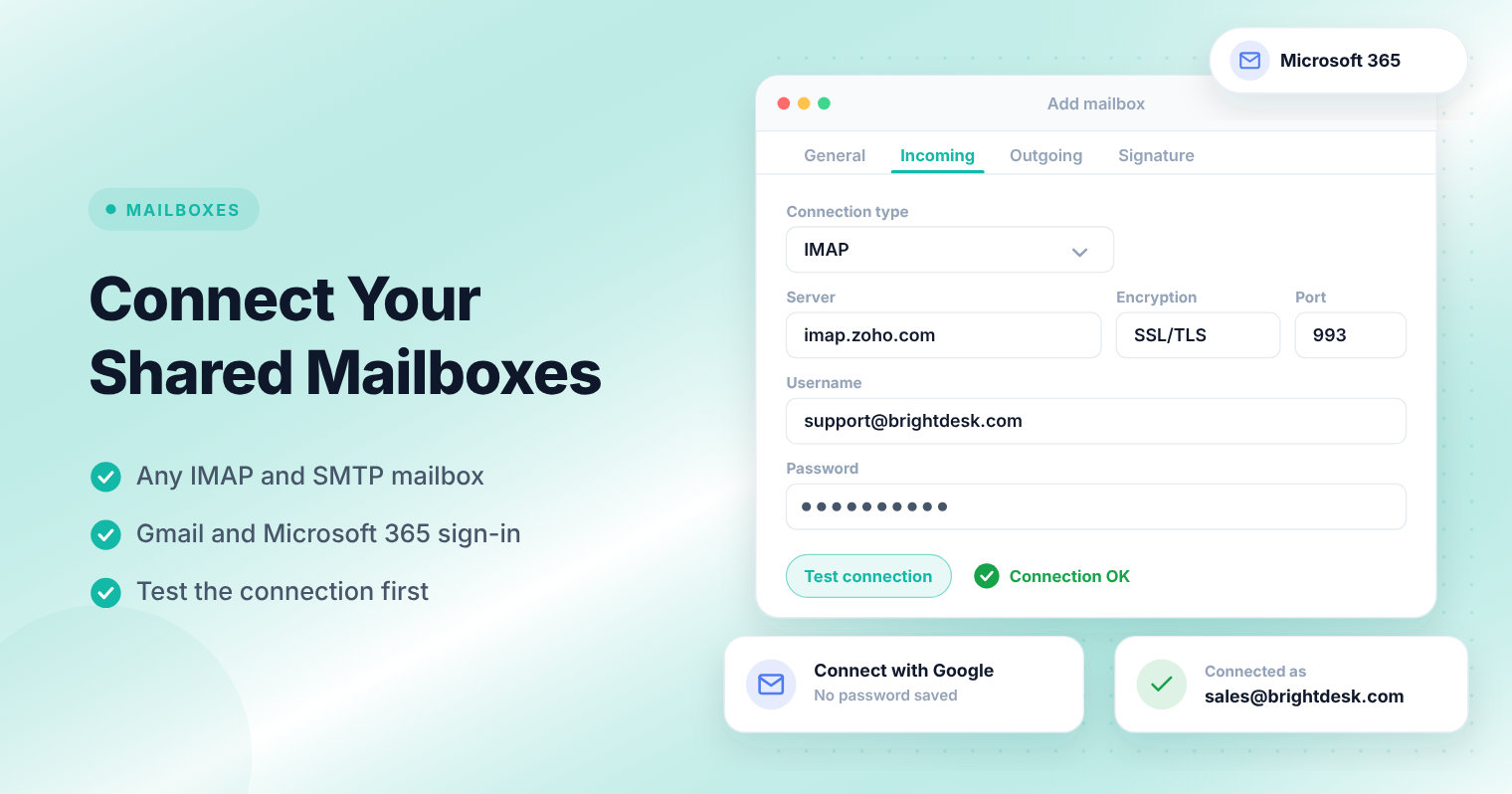
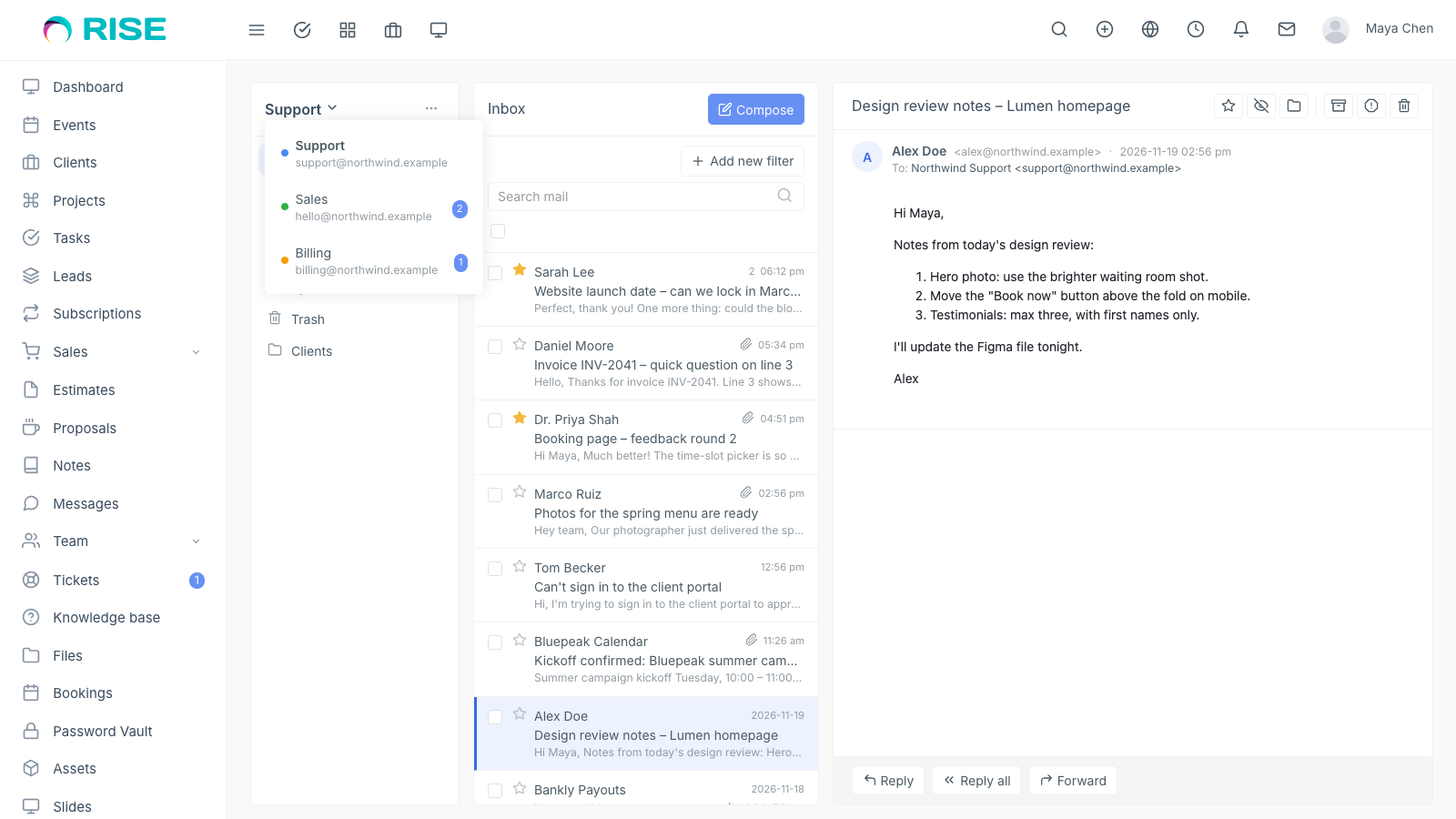
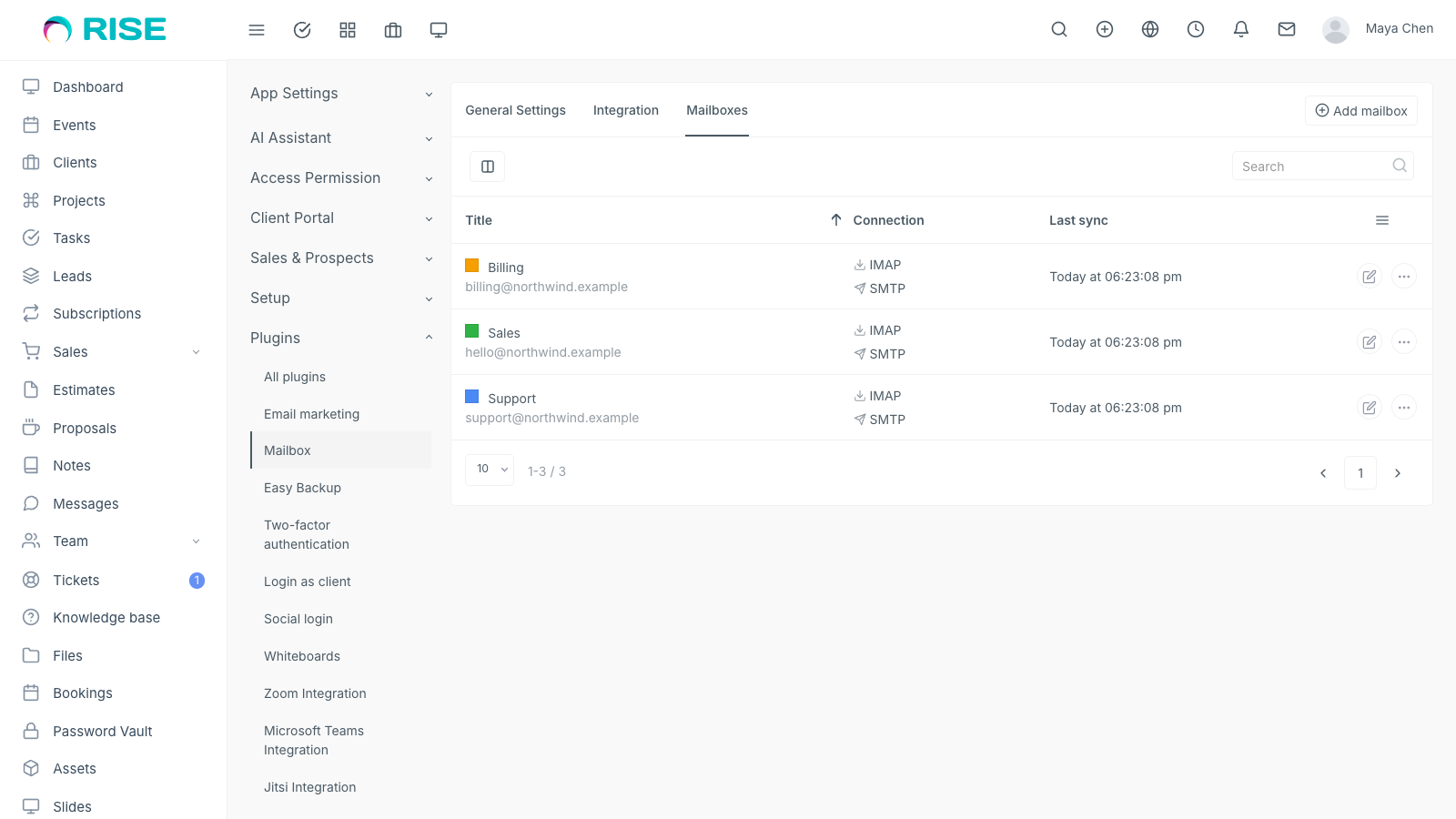
Connect Your Shared Mailboxes
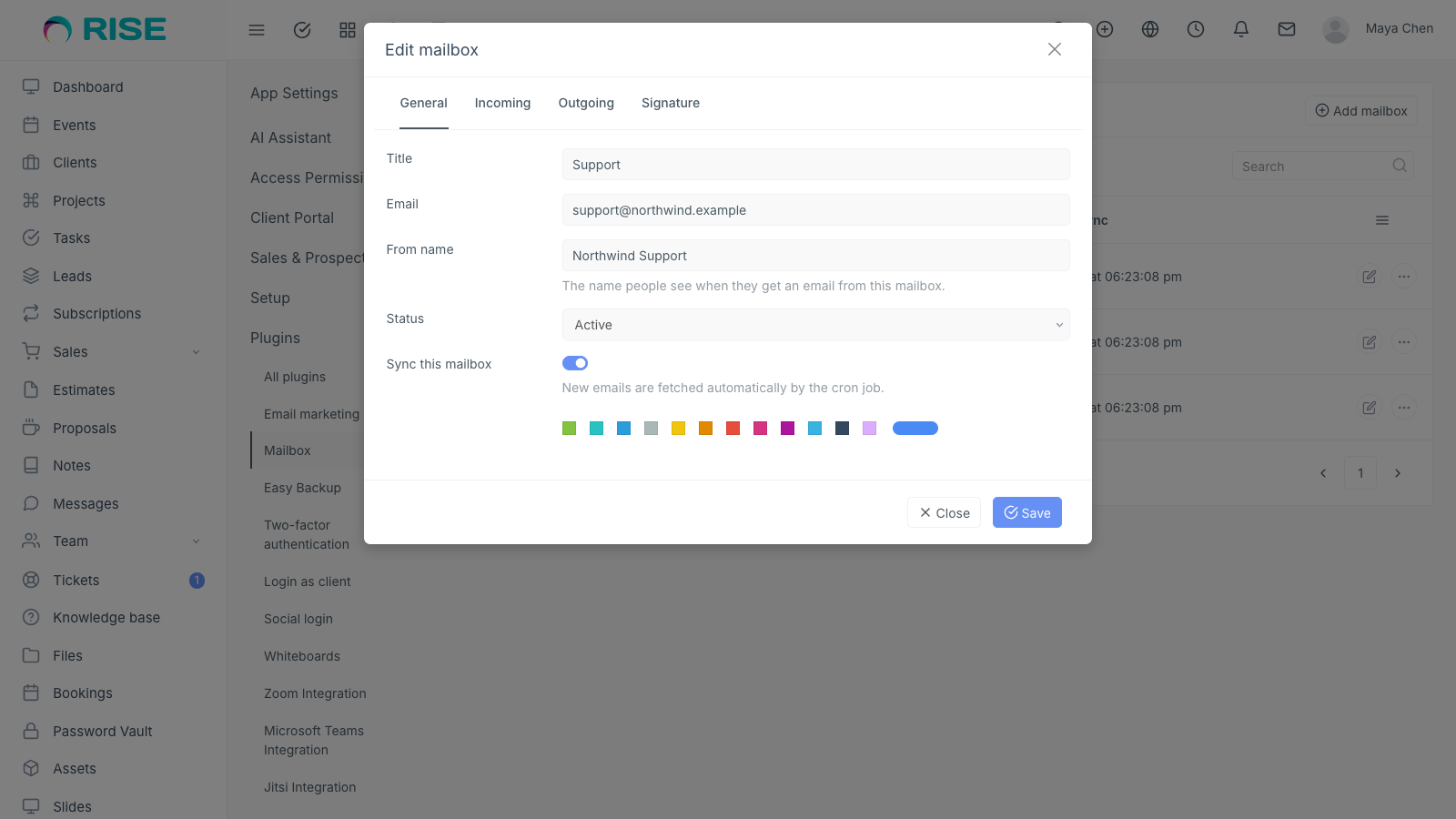
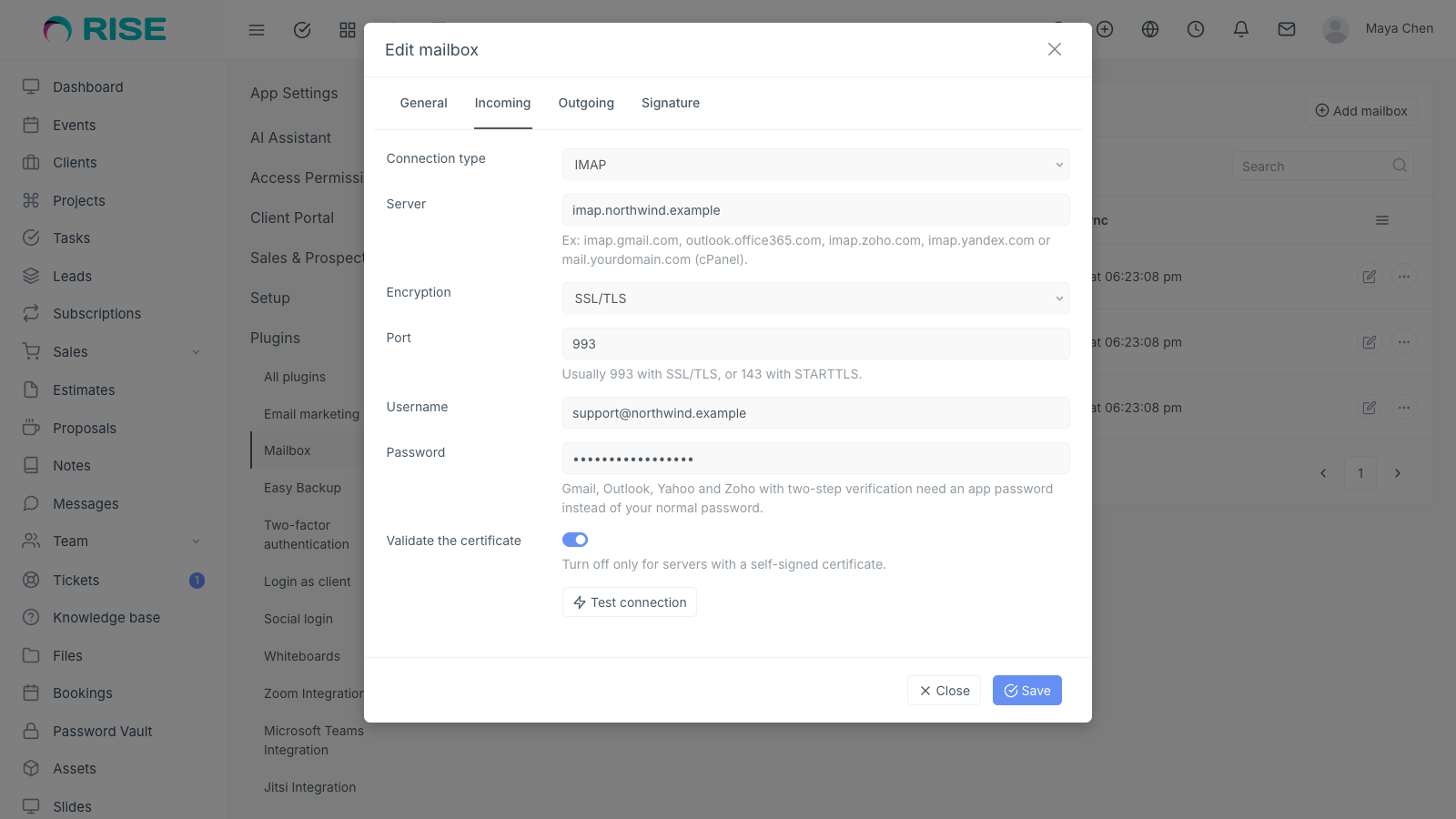
Add the mailboxes your team already uses. You can connect them with IMAP and SMTP, or with a secure sign-in.
- Connect any IMAP and SMTP mailbox, such as cPanel, Zoho, Yandex, Yahoo, or your own mail server.
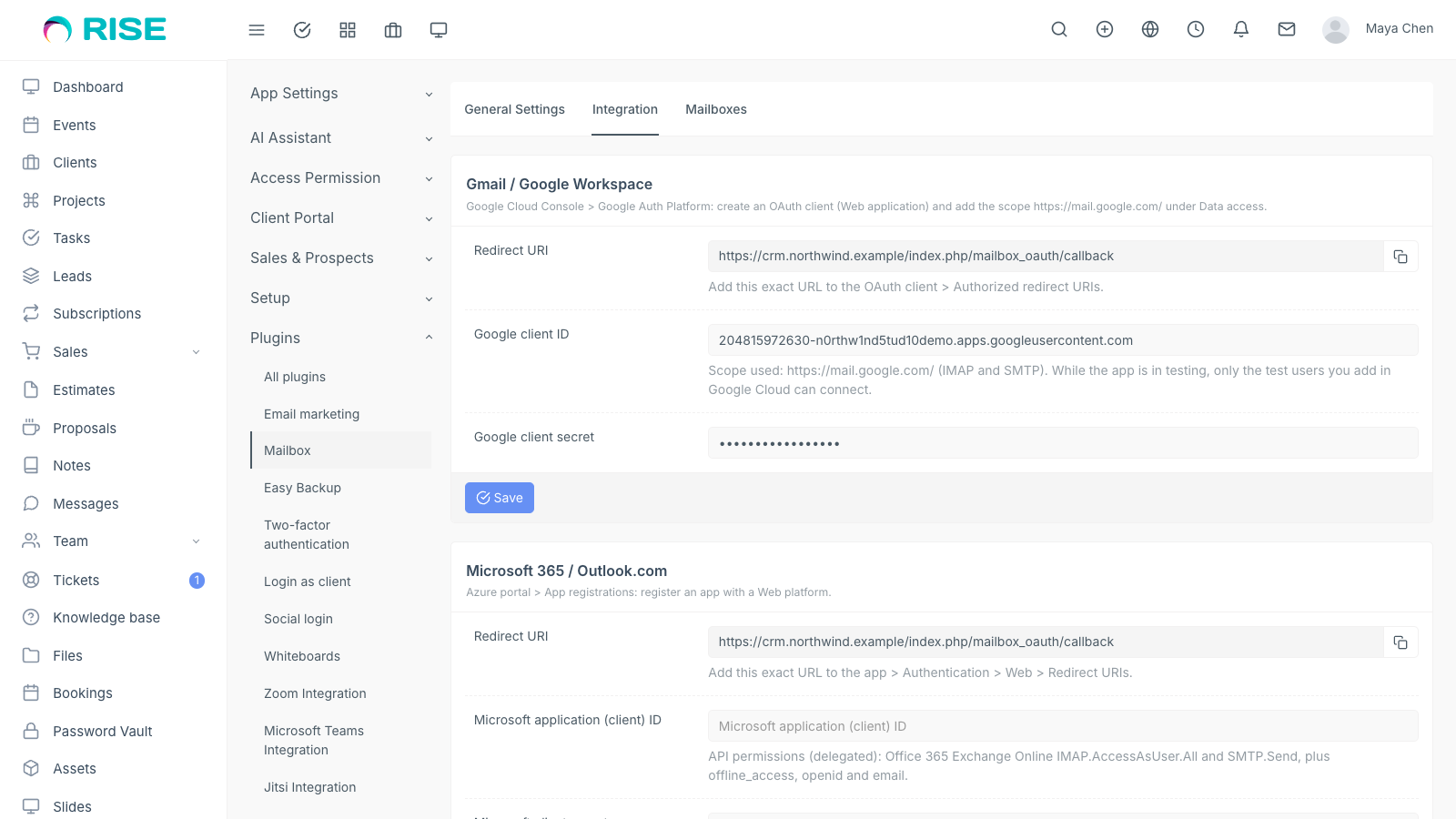
- Connect Gmail, Google Workspace, Microsoft 365, or Outlook.com with a secure sign-in. No password is saved in RISE.
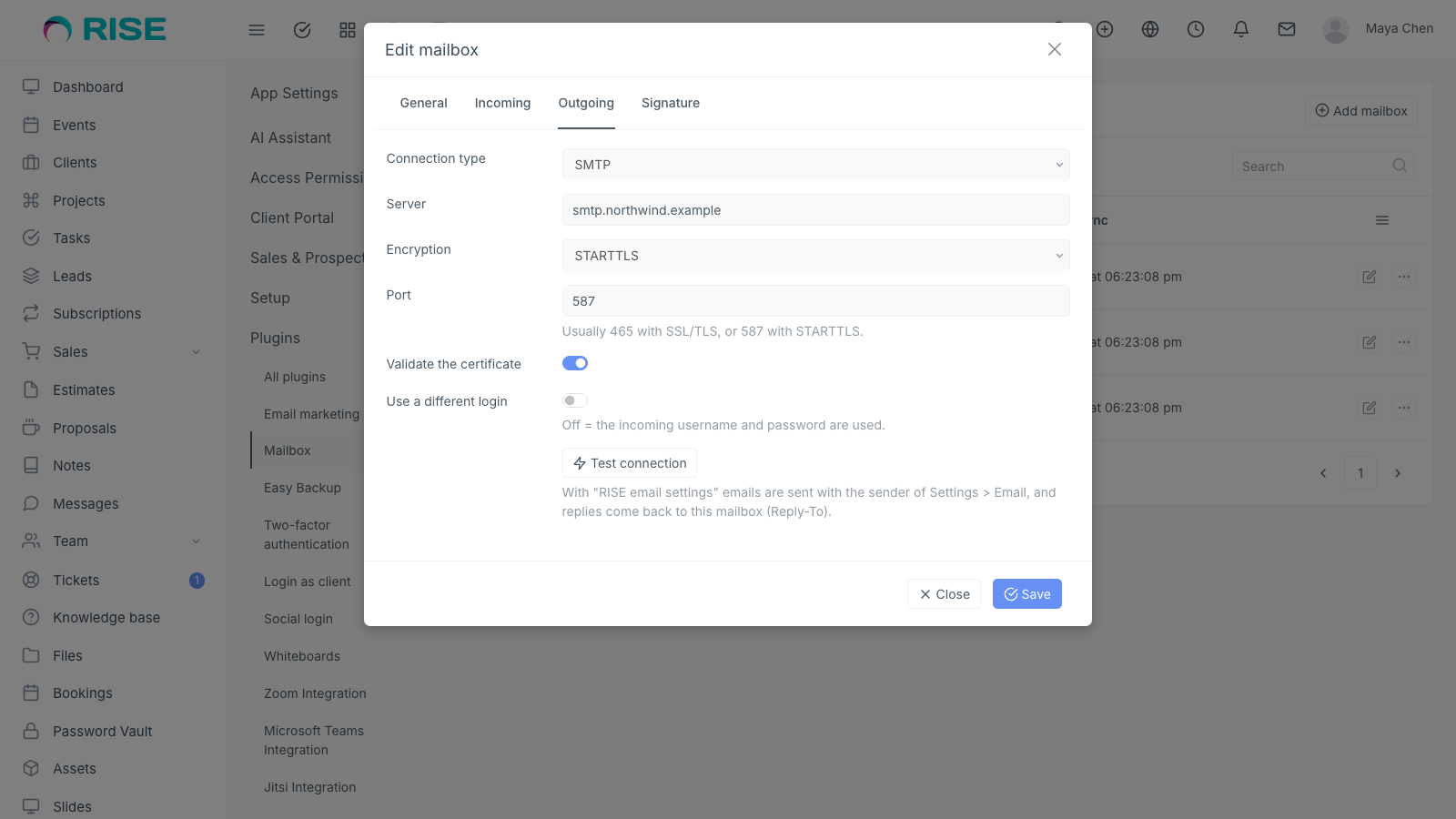
- Click Test connection to check your incoming and outgoing settings before you save.
- Send from the mailbox's own SMTP server, or with the sender of your RISE email settings.
- Connect a Microsoft 365 shared mailbox by signing in with a user who has full access to it.
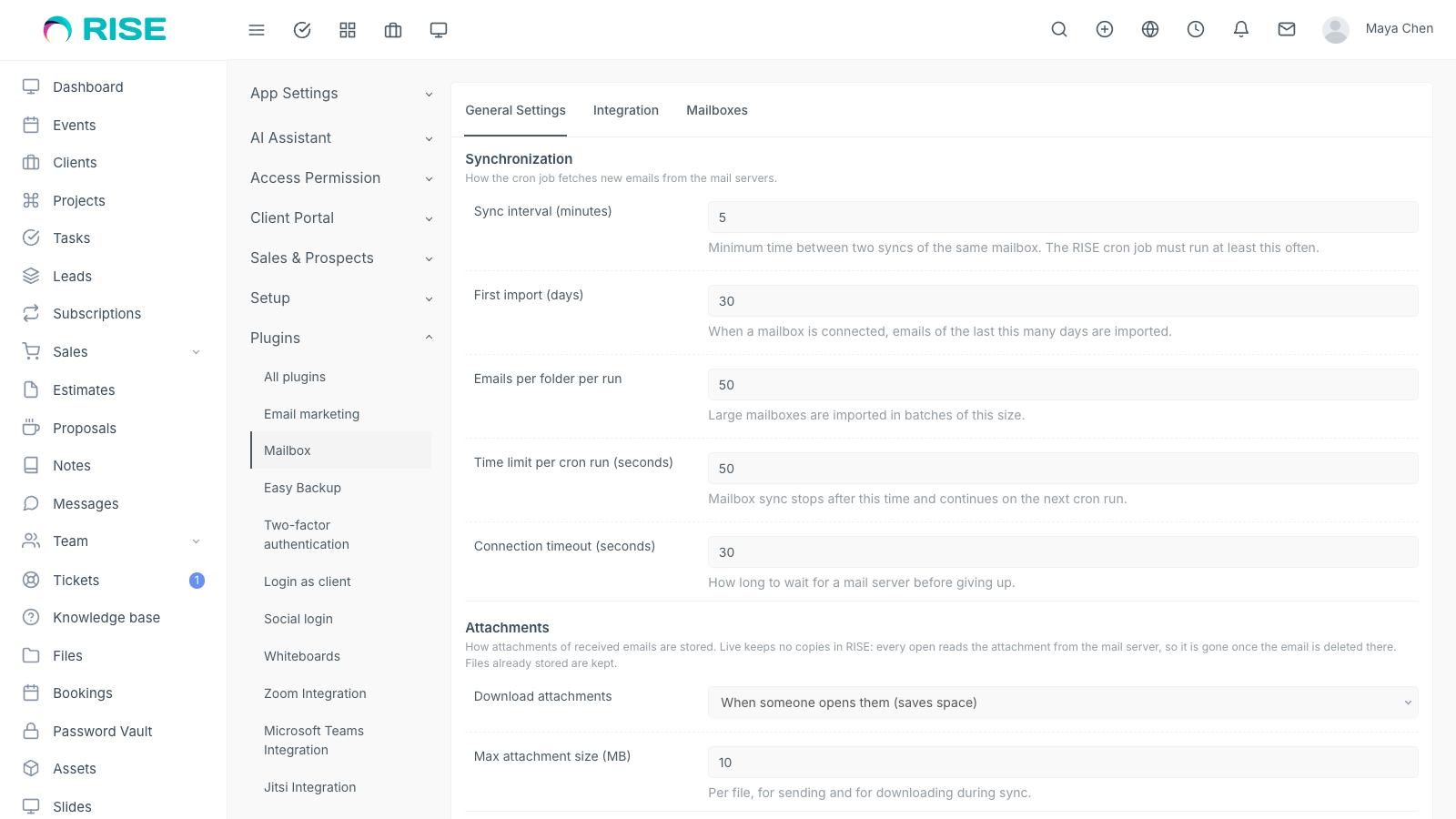
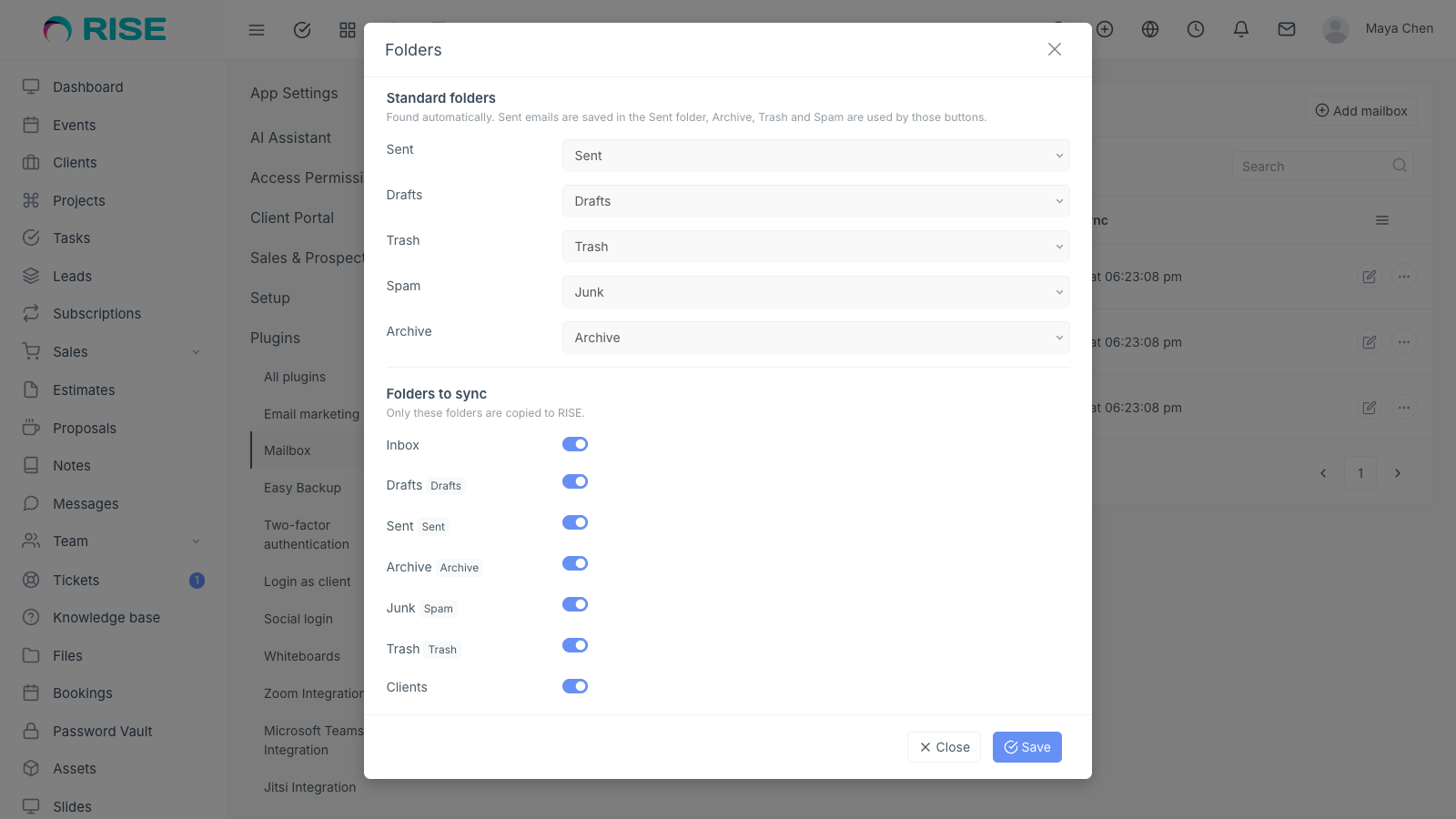
- The first sync imports the emails of the last 30 days, newest first, so recent emails show up right away.
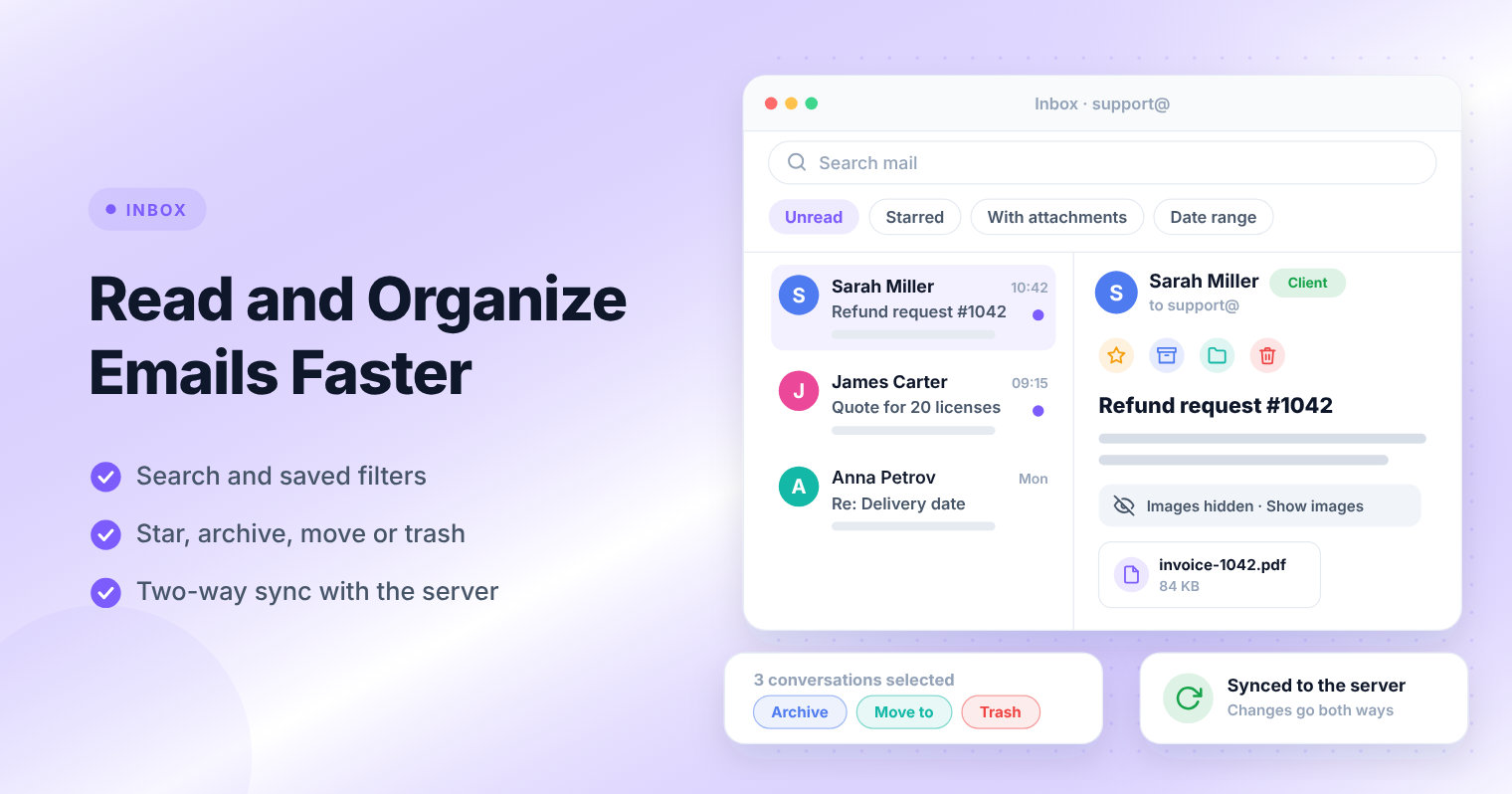
Read and Organize Emails Faster
Emails and replies are grouped into conversations. You can find what you need and keep your inbox tidy.
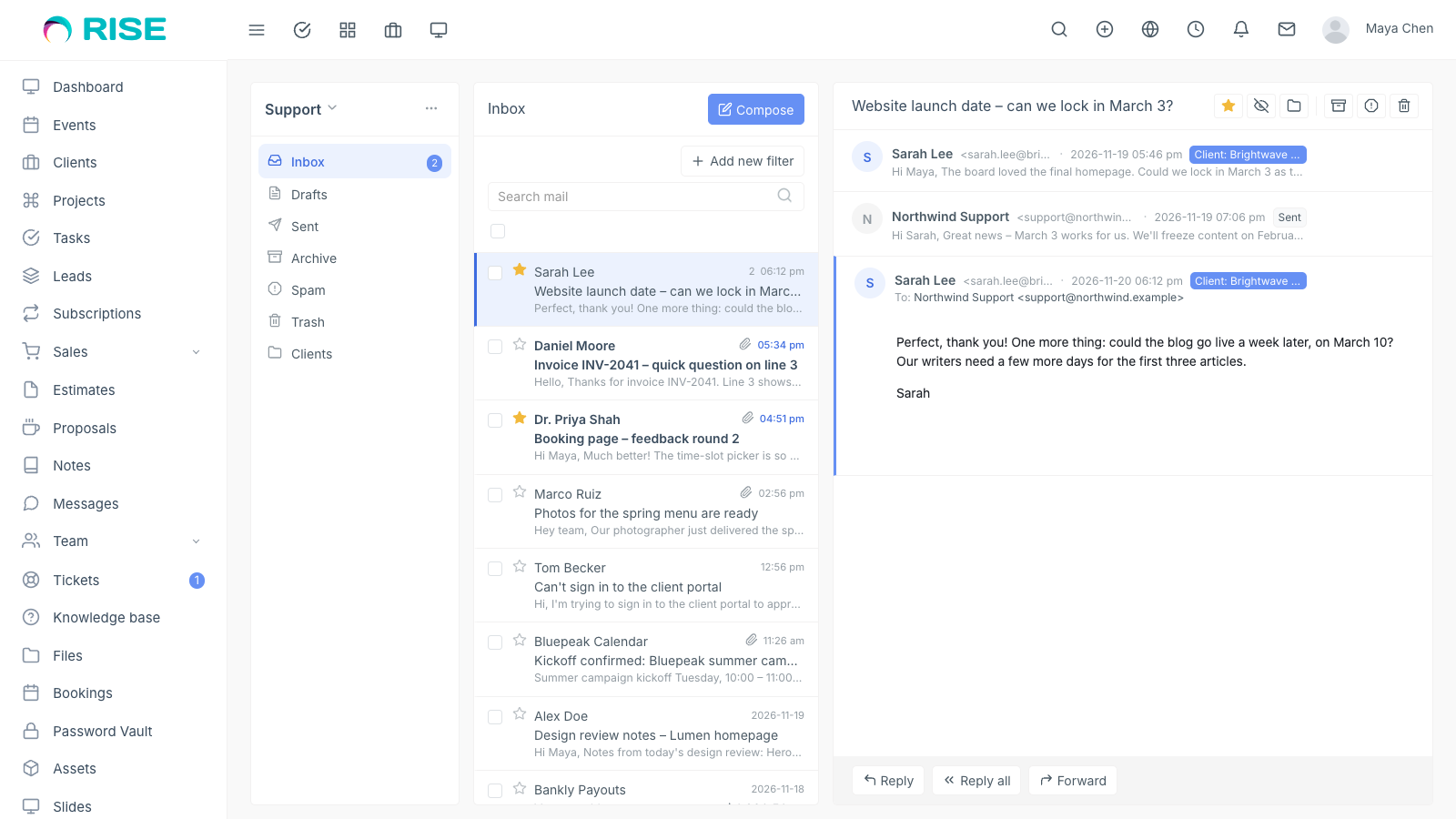
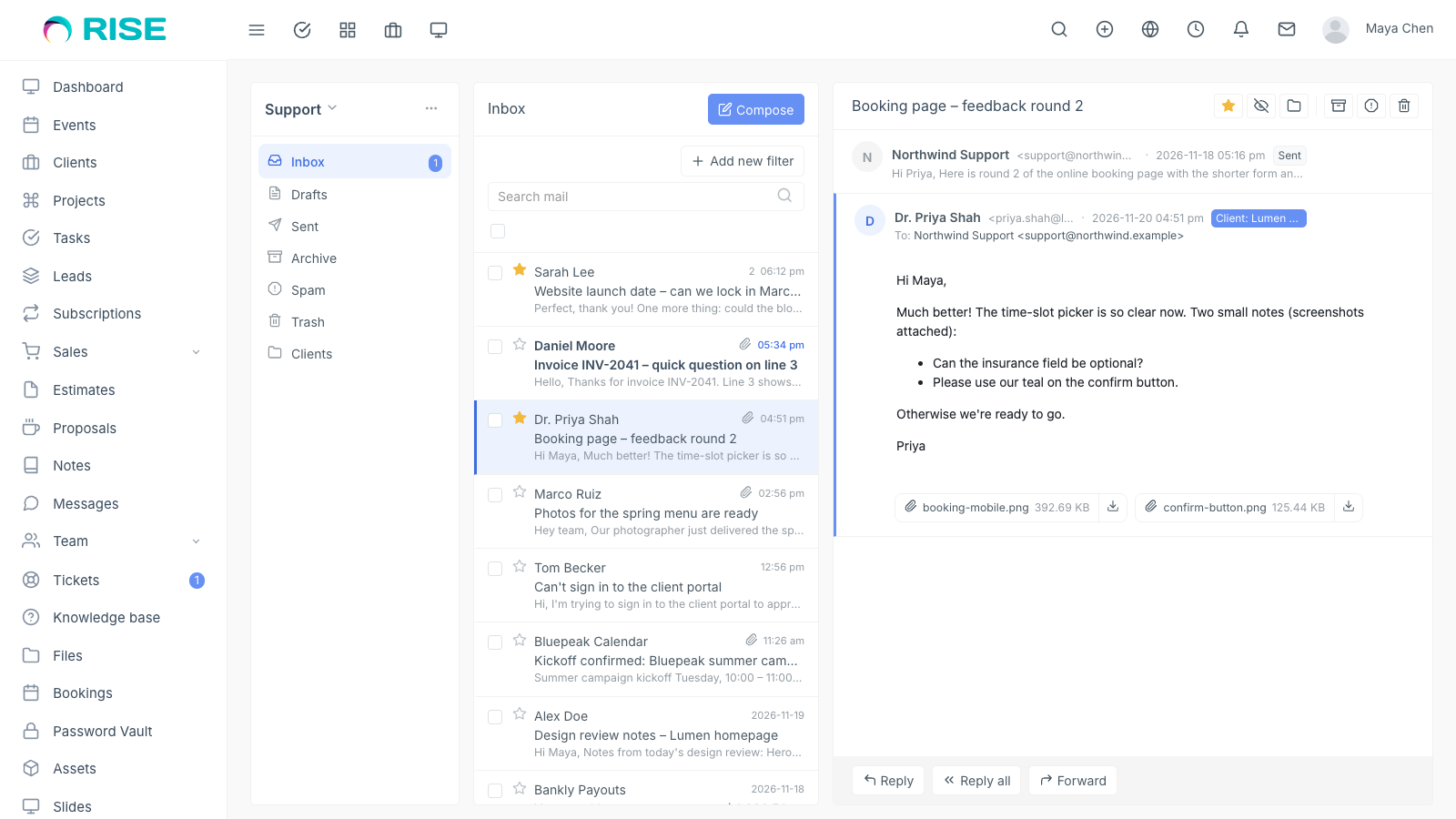
- See folders, conversations, and the reading pane in one screen. On a phone, you see one part at a time.
- Search the subject, sender, recipients, and preview. Filter by unread, starred, attachments, or date range, and save the filters you use often.
- Click an attachment to preview it. Images from the internet stay hidden until you click Show images.
- Star, mark as read or unread, move, archive, mark as spam, or move to trash. Select several conversations to do it all at once.
- Every change is also made on the mail server. Changes made in other mail apps come back with the next sync.
- Unread counts update every minute.
Write and Reply from RISE
Answer your clients and leads without switching to another app.
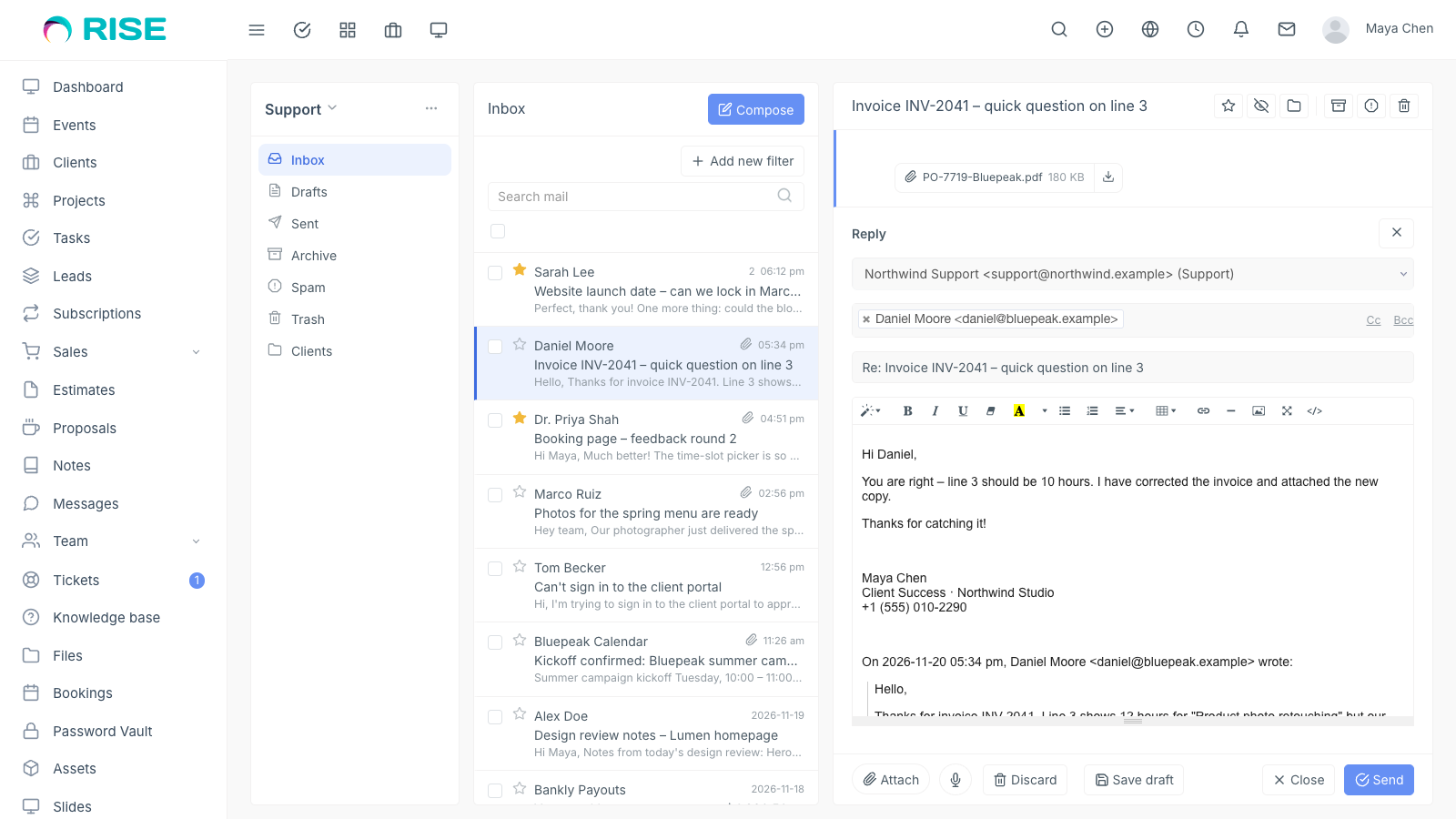
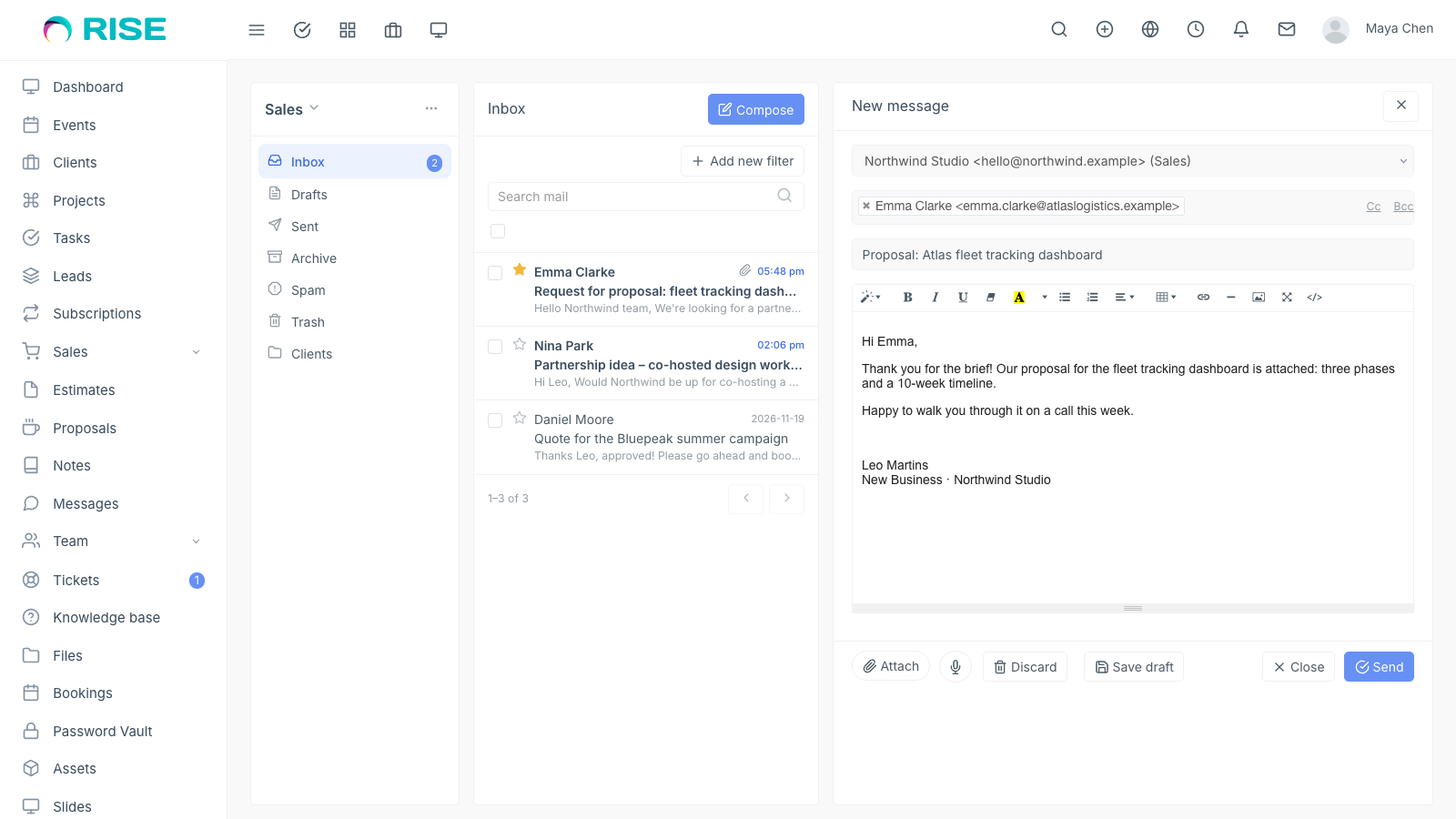
- Compose new emails, reply, reply all, and forward. Forward includes the original attachments.
- Add recipients in To, Cc, and Bcc. Suggestions come from your mailboxes, team members, and the client and lead contacts you can see.
- Attach files and paste images. You can send up to 25 MB of attachments to up to 100 recipients per email.
- Drafts are saved every 30 seconds. Click Save draft to save one in the Drafts folder of the mail server too.
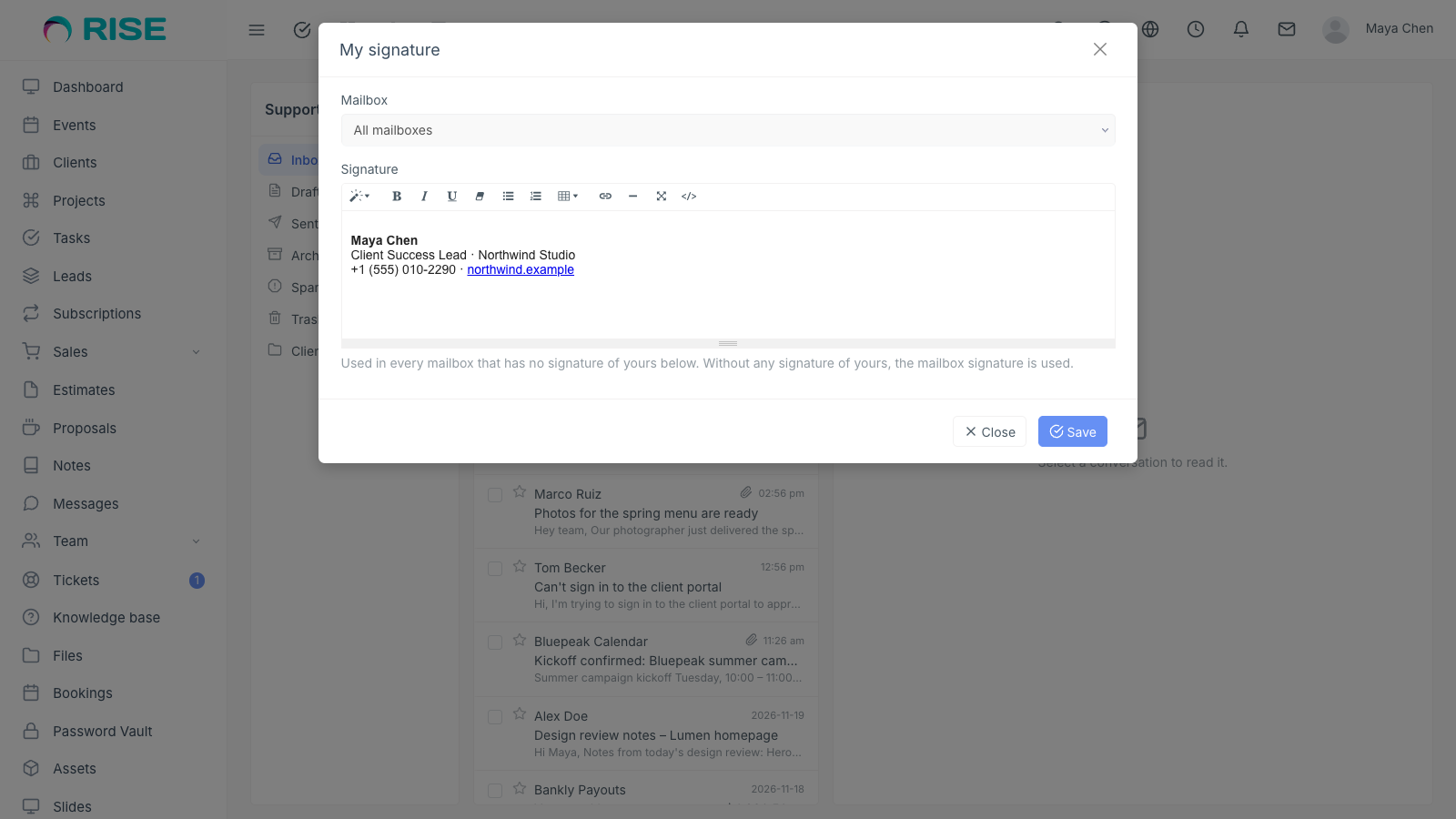
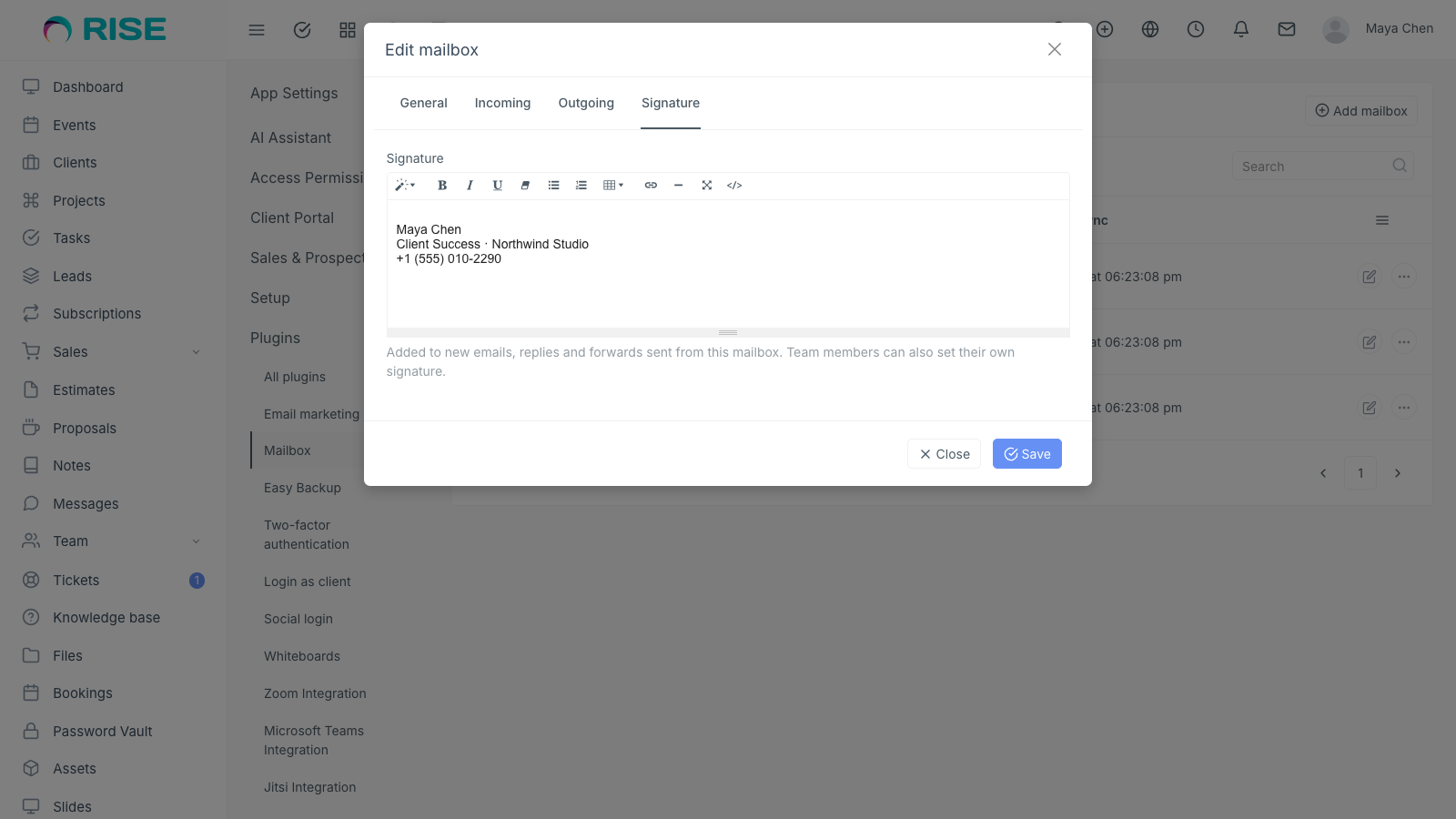
- Add a signature to each mailbox, and set your own signature for all mailboxes or for one.
- If sending fails, the email is kept as a draft and you see the reason.
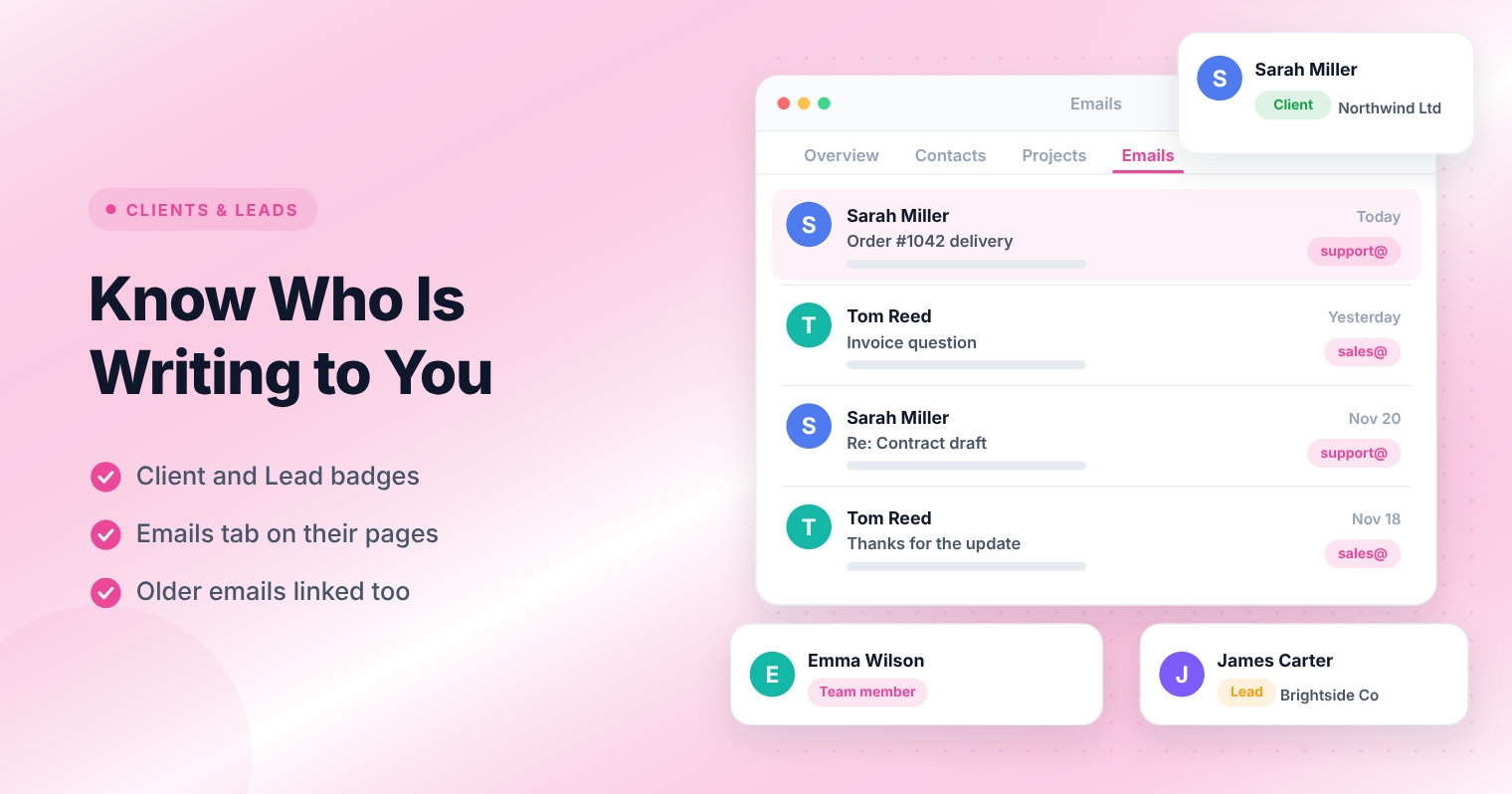
Know Who Is Writing to You
Emails from clients and leads are linked to their pages. You don't need to set anything up.
- See a Client or Lead badge with the company name next to the sender. Click it to open the client or lead. Team members get a Team member badge.
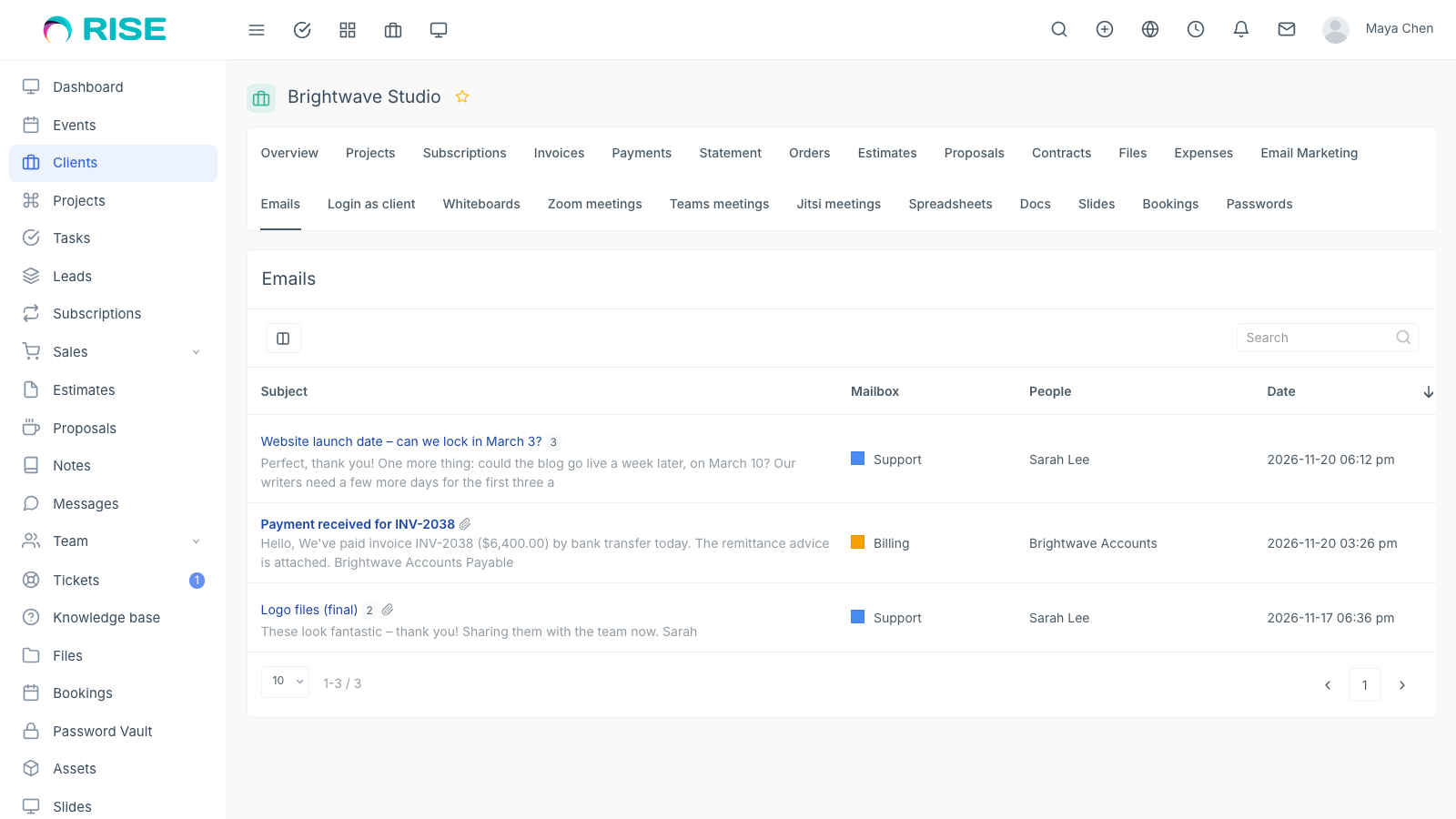
- Open the Emails tab on a client or lead page to see every conversation sent from or to their contacts.
- The tab shows only the mailboxes your role can open, and you need permission to view that client or lead.
- When you add a contact or change its email, older conversations are added right away.
- When a lead becomes a client, its emails stay on the client page.
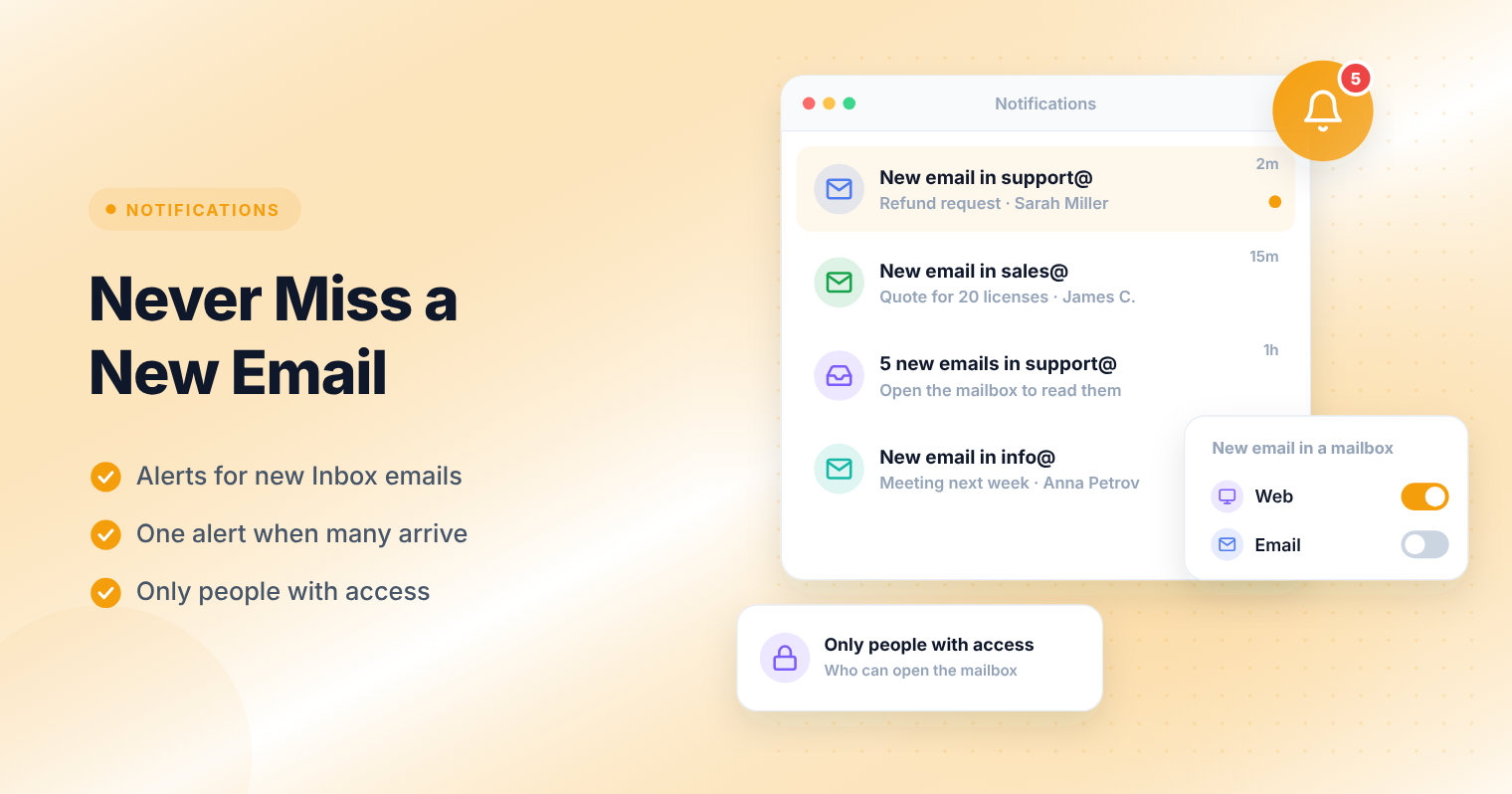
Never Miss a New Email
Your team is told when new emails arrive in the mailboxes they can open.
- Team members get a notification when a new unread email arrives in the Inbox.
- When more than 5 emails arrive at once, you get one notification with the number.
- The first import of a mailbox sends no notifications.
- Change who gets notifications in Settings > Notifications. By default, web notifications are on and email notifications are off.
- Only people who can open the mailbox are notified.
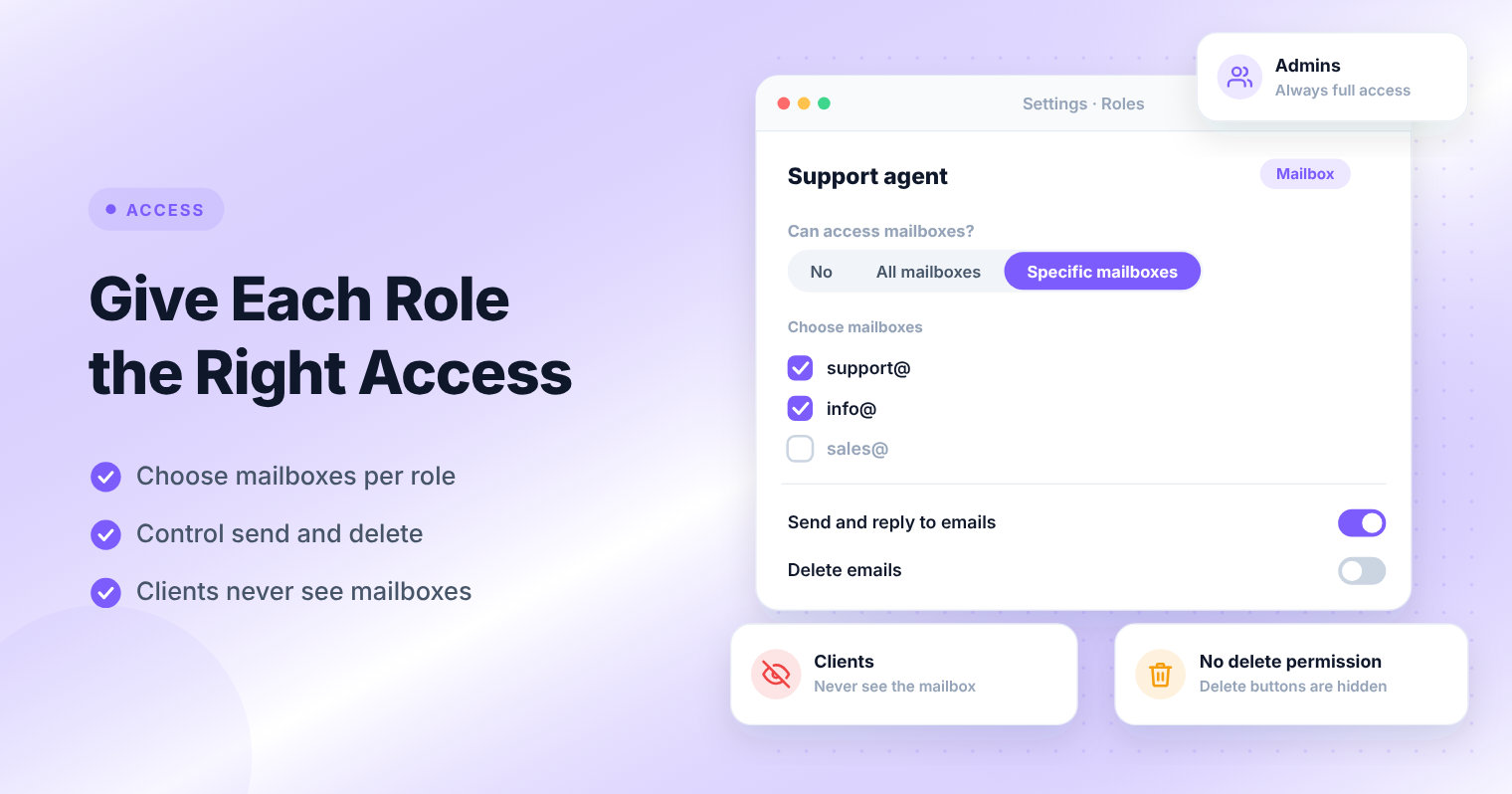
Give Each Role the Right Access
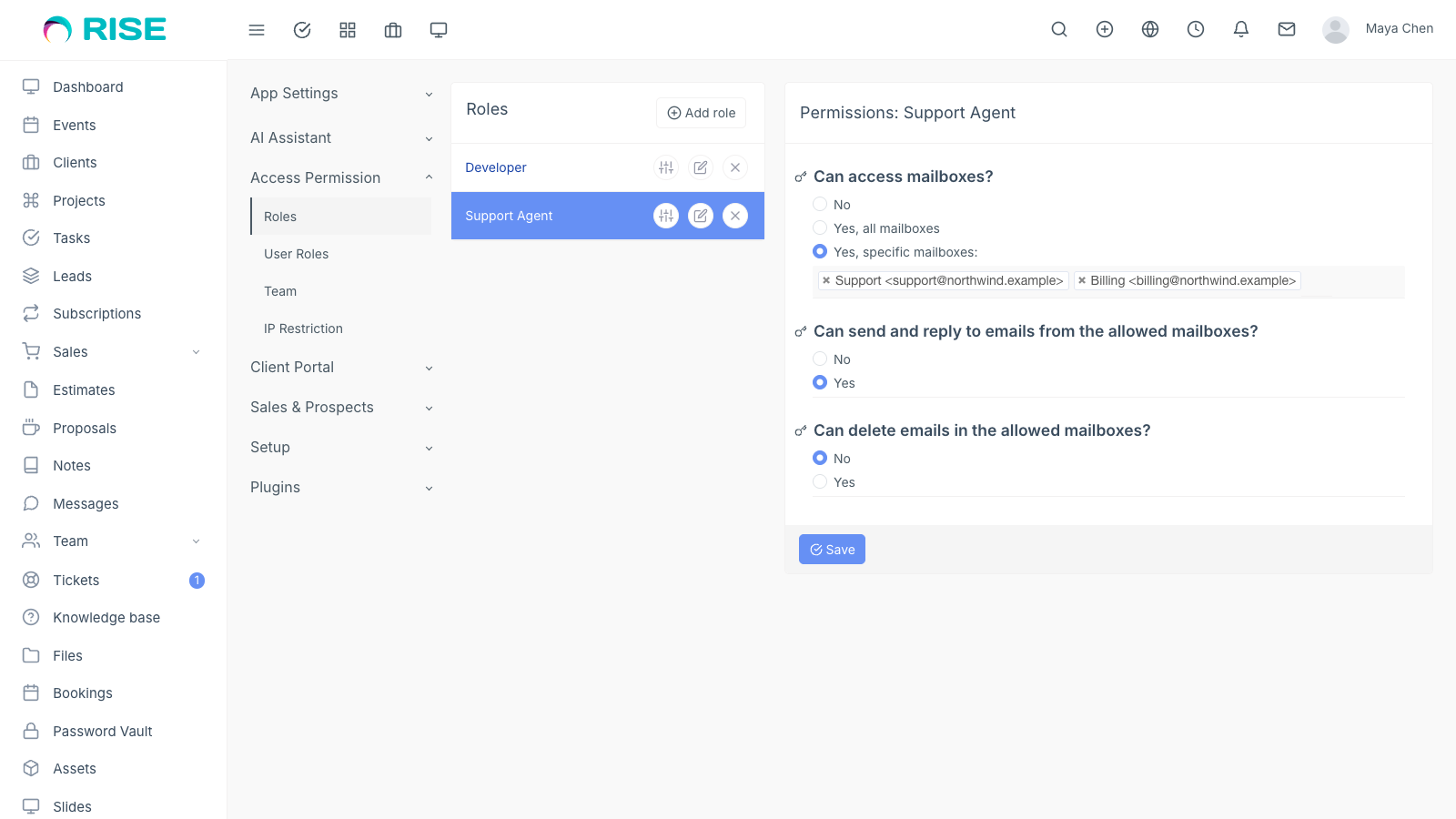
Choose what each role can do in each mailbox. Admins can always do everything, and clients never see the mailbox.
- Let a role open no mailboxes, all mailboxes, or only specific mailboxes.
- Choose which roles can send and reply to emails, forward them, and save drafts.
- Choose which roles can move emails to the trash and delete them forever.
- The inbox, search, counts, and notifications only include the mailboxes a role can open. Buttons a role can't use are hidden.
- Adding, editing, and deleting mailboxes needs access to the settings. It doesn't let people read the emails.

Keep Your Data Safe and in Control
Mailbox saves your logins safely and gives you settings to fit your site.
- Passwords and sign-in tokens are saved encrypted.
- Remote images are blocked by default, so senders can't track when an email is opened.
- Choose when attachments are downloaded: when someone opens them, during sync, or never. Set the max attachment size.
- Set the sync interval, the time limit per cron run, and how many emails are synced per folder per run.
- Remove older emails from RISE after a number of days. They stay on the mail server.
- Click Sync now to sync right away. When there are no new emails, it loads older ones step by step.
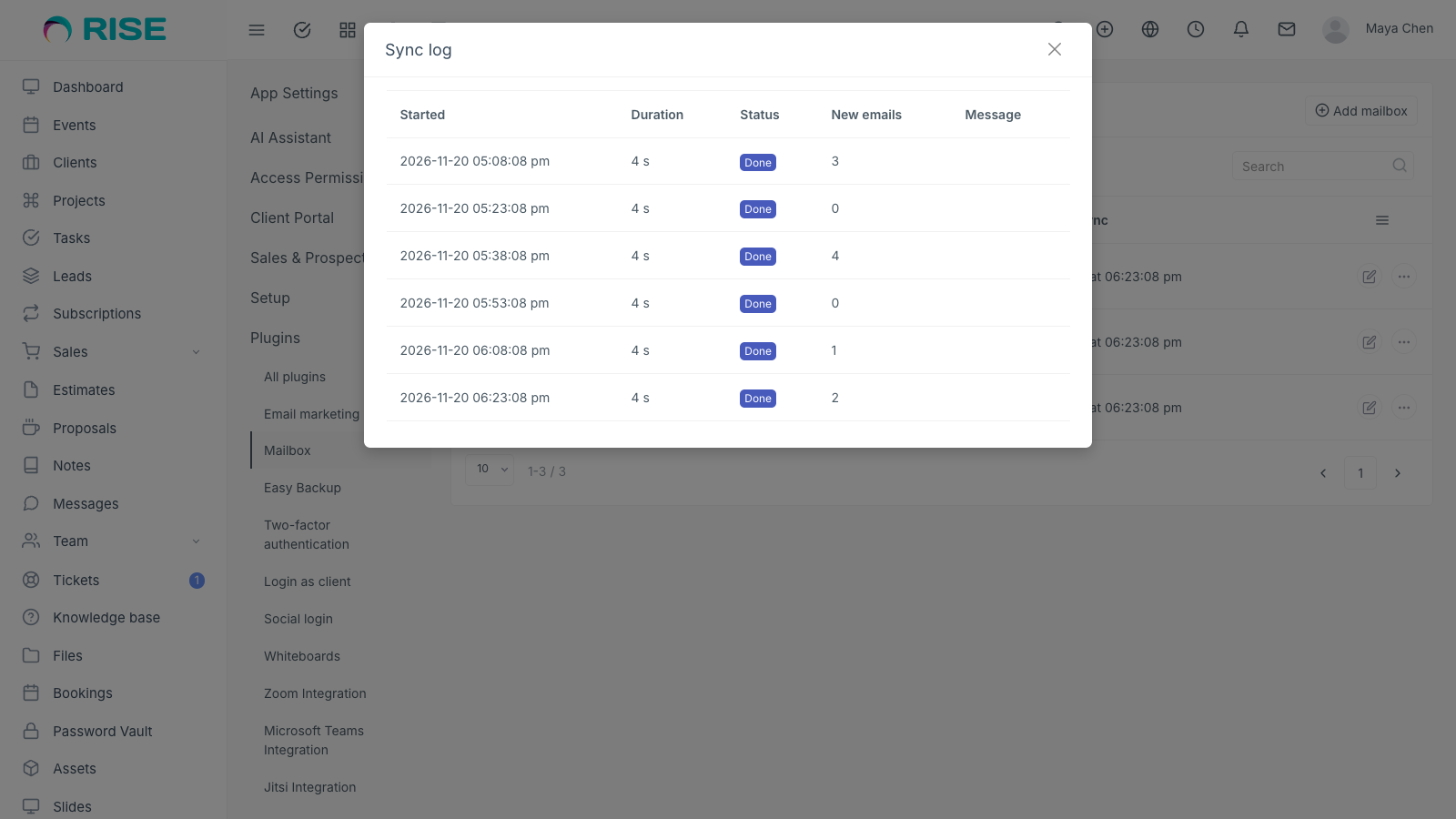
- Check the Sync log for the last error and the last 30 runs.
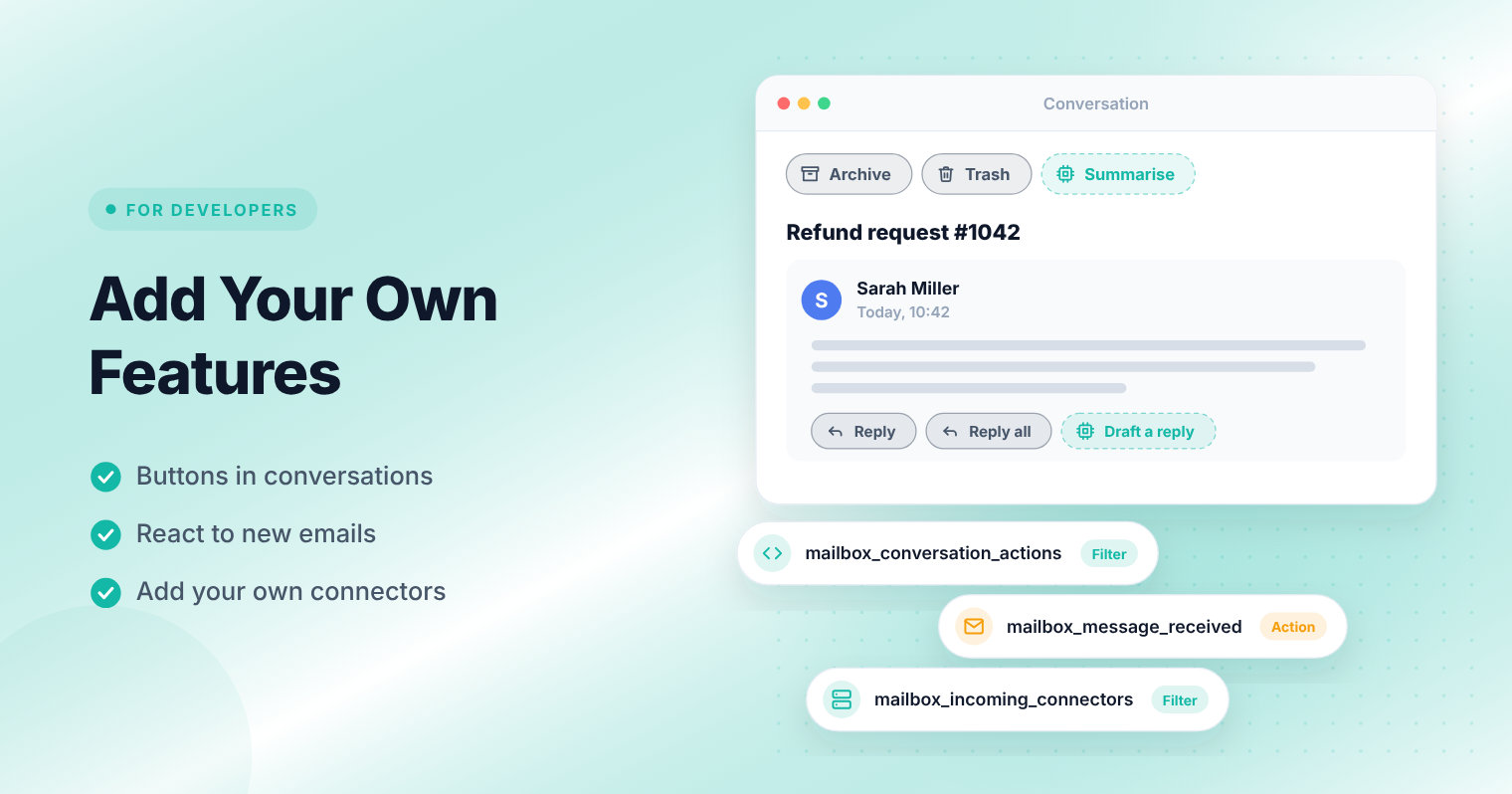
Add Your Own Features
Developers can extend Mailbox from other plugins with hooks. Mailbox never calls an AI service itself.
- Add buttons to an open conversation, next to Reply on each email, or in the compose window.
- Open your own page in a modal or a new tab, or insert text into the email you are writing.
- React to new emails and to emails sent from RISE.
- Add your own incoming and outgoing mail connectors and sign-in providers.
- Use the button hooks to add features such as "Summarise" or "Draft a reply".

Requirements
Check these before you install Mailbox.
- RISE 4.2 or newer.
- The cron job running in Settings > Cron Job. Mailbox fetches new emails when the cron job runs.
- The login of each mailbox: an IMAP and SMTP server with a username and password, or a Gmail / Microsoft 365 account.
- For Gmail or Microsoft 365 sign-in, you set up a sign-in app once in Settings > Plugins > Mailbox > Integration.
With over 12 years of software development experience, FairSketch delivers reliable, innovative solutions that help businesses grow.